Frequently Asked Questions
1. Installation Direction
Note: The device can be installed horizontally or vertically, with the indicator light facing forward.
2. macOS Processing Issues
Symptom: NiYien Tool exits quickly or prompts that the correct Gyroflow version is not installed
Solution: Reinstall the Gyroflow Nightly Build version and ensure it is installed in the Applications folder
3. Time Sync Operation
Note: Time synchronization can be performed at the beginning of the day or after all shooting is completed
4. Manual Time Sync
Steps:
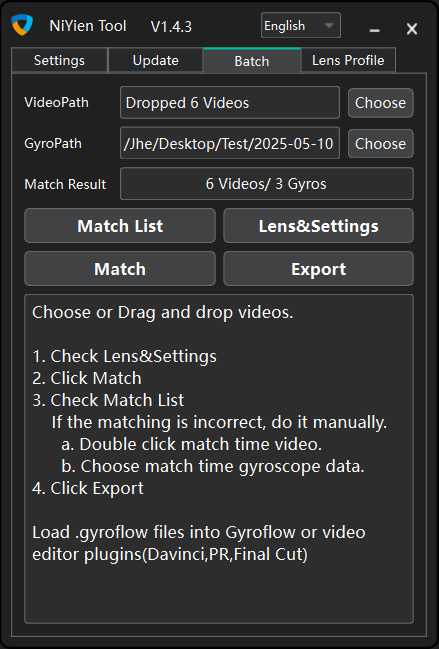
Drag the video and gyro data into the NiYienTool, and do not click Match
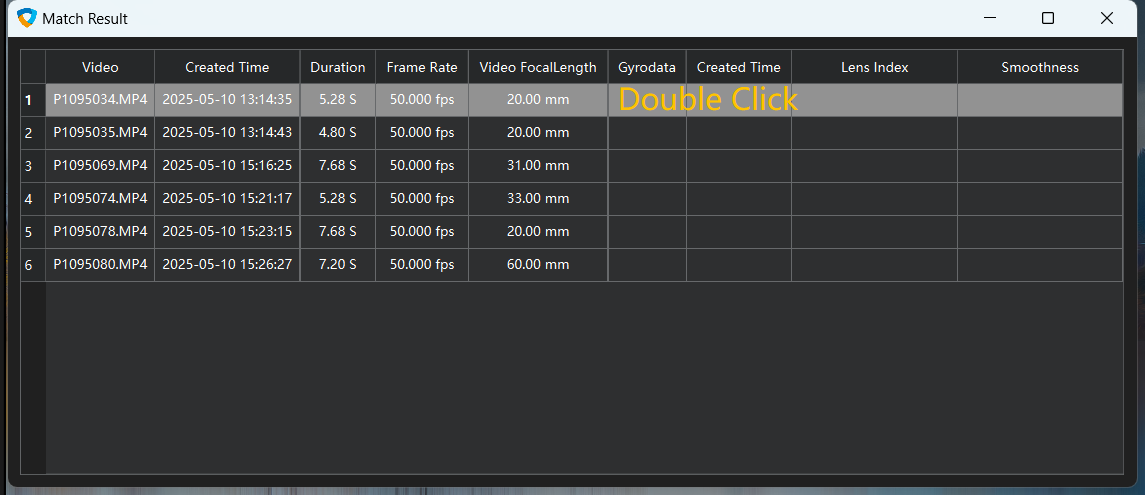
Open Match List in NiYien Tool
Double-click the time sync video
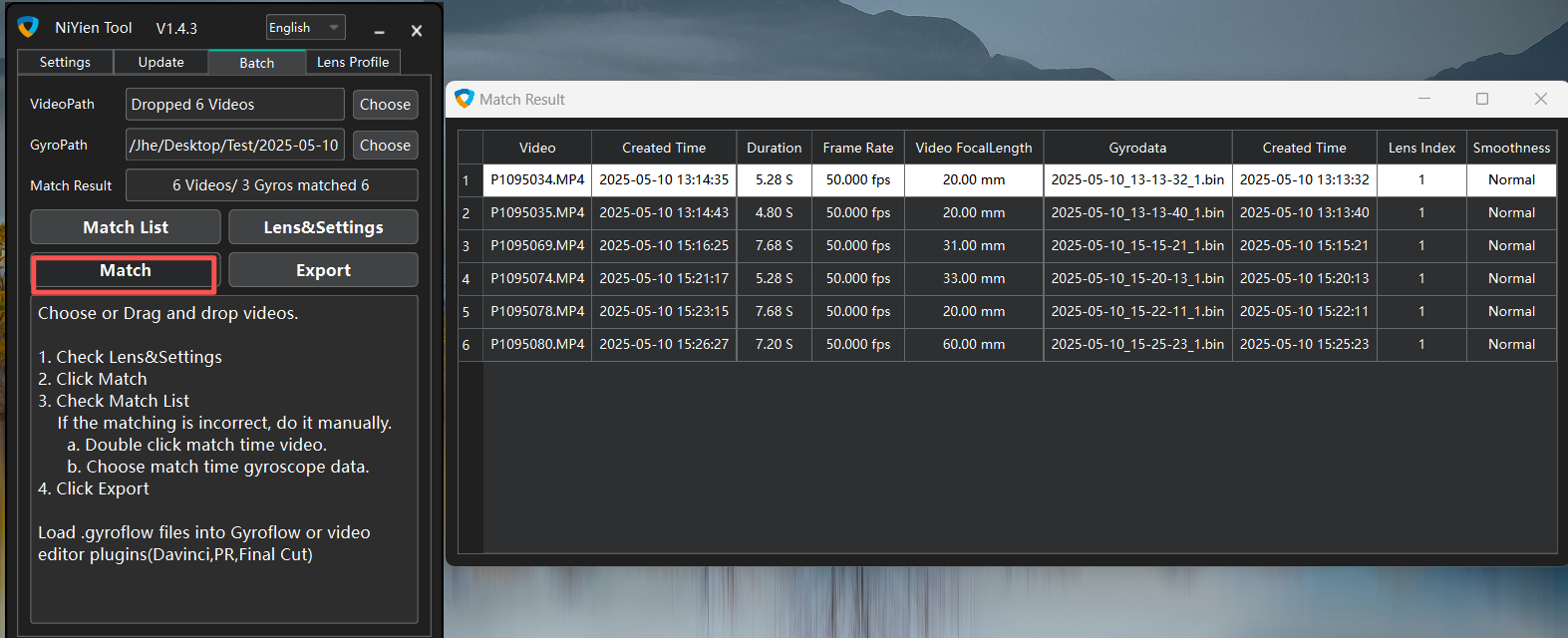
Select the corresponding gyroscope file (recorded simultaneously with the sync video)
Click Match
5. Forgot Time Sync
Option 1: Use time sync data from the previous/next day
Copy the sync video to the current day's folder
Copy the corresponding gyroscope file to the current day's gyroscope folder
Perform manual time sync according to step 4
Option 2: Re-shoot the sync video and perform manual time sync according to step 4
6. Some Videos Cannot Be Processed
Cause: The mobile app was connected to the camera during shooting, which automatically sets the camera time and breaks the time sync
Solution:
Re-shoot the sync video or use the next day's time sync data
Import the problematic videos with the new time sync data into NiYien Tool
Perform manual time sync according to step 4
7. Sync Failed for Some Videos
Cause: Some videos with long focal lengths or completely static shots may not be correctly synchronized
8. Jello Effect in Footage
Cause: Low shutter speed or excessive motion causes severe motion blur, resulting in jello effect
Solution:
Walk more lightly
Increase shutter speed
9. Firmware Update Interrupted
Solution: Eject the memory card → Reconnect to computer → Restart the upgrade
10. Nikon R3D / Canon CRM Format Not Recognized
Solution: Drag both the proxy video and Raw video into NiYien Tool
11. First 1 Second of Video is Shaky
Cause: During time sync, the gyroscope was started about 1.5 seconds later than the camera recording, so each video has less data at the beginning
Solution:
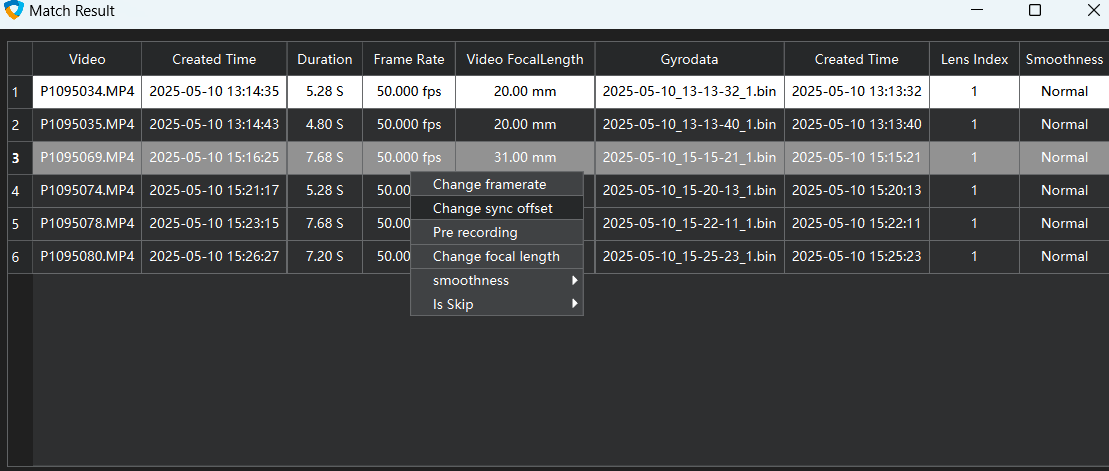
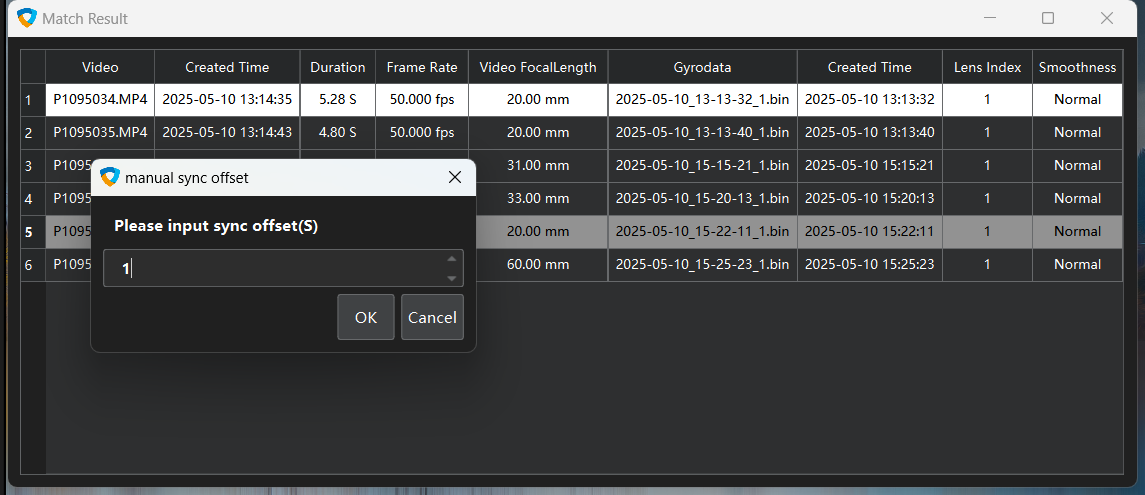
Right-click any row in the Match List
Select Change Sync Offset
Enter the offset time in seconds (e.g., enter 1 if the shaky part is 1 second)
12. Adapter Ring Cannot Recognize Focal Length
Cause: Some adapter rings cannot correctly recognize or pass lens focal length information to the camera
Solution:
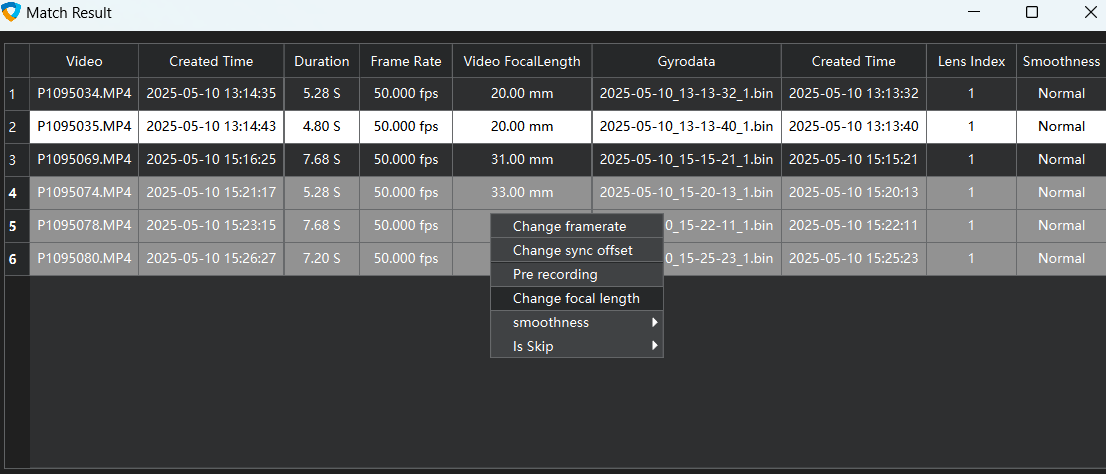
Use semi-auto mode
Or right-click in the Match List and select Change Focal Length
13. Encoding Not Supported
Cause:
Windows: Most graphics cards do not support YUV422 10bit video
macOS: Does not support H.264 10bit encoding
Solution:
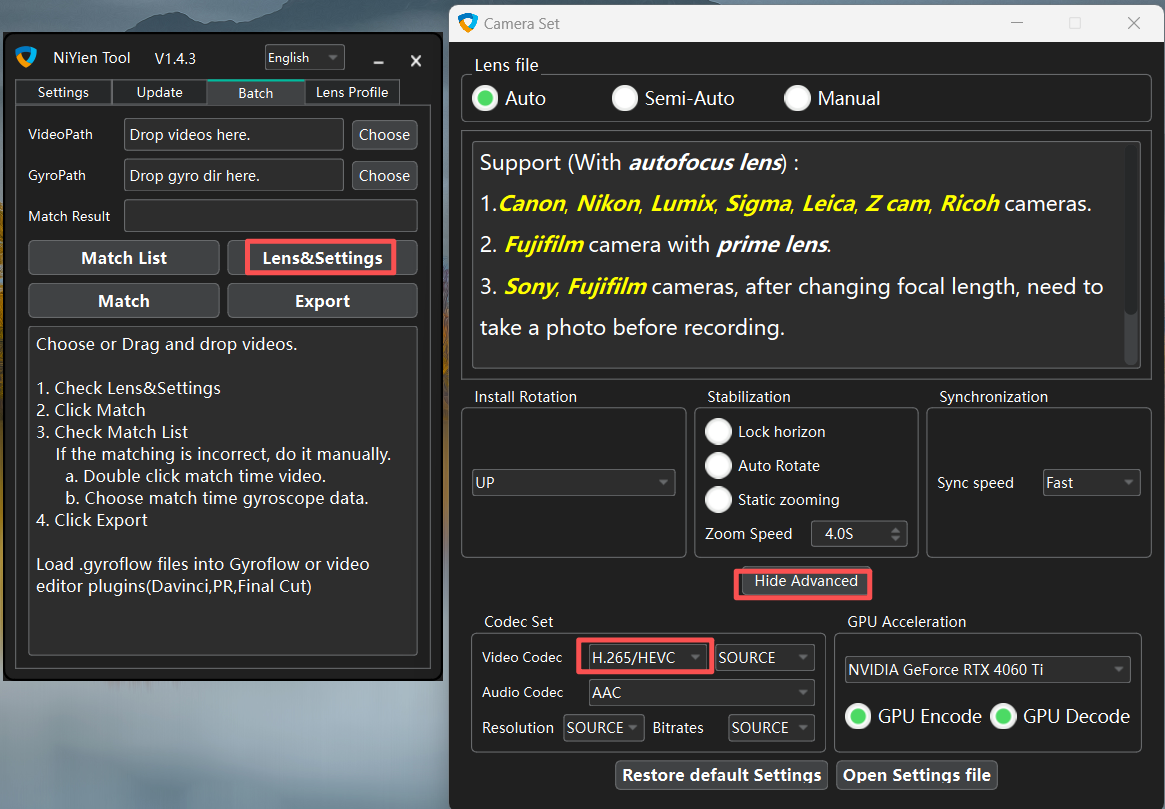
Try switching to H.265 encoding
If it still doesn't work, use the DaVinci Resolve or Premiere Pro plugin workflow (recommended)
14. Processing speed is too slow or stalled.
Cause:
NAS or external SSD is used; slow or stalled processing due to insufficient write permissions.
Solution:
Do not process videos in the root directory of external SSD or NAS. Create a subfolder instead.
Check if write permissions are enabled.